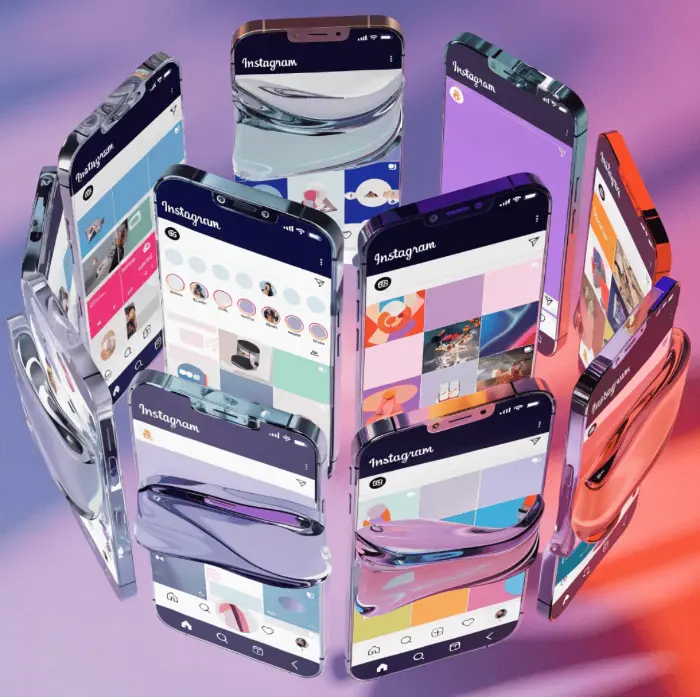
Getting Started Influxie First Session
Learn how to set up and run your first Influxie session with this comprehensive step-by-step tutorial. Perfect for beginners looking to grow their Instagram safely.

Getting Started with Influxie: Your First Session
Welcome to Influxie! If you’re looking to grow your Instagram audience while saving hours of manual work each week, you’ve come to the right place. This comprehensive tutorial will guide you through your first session, even if you’ve never used engagement tools before.
Setting up engagement sessions can feel intimidating at first, but Influxie makes it simple to configure and run sessions — with the safeguards you control. By the end of this tutorial, you’ll have your first session running and be well on your way to reaching more people in your target audience.
What You’ll Learn in This Guide
This step-by-step tutorial covers everything you need to know to run your first Influxie session:
- Setting up your Influxie account
- Adding and verifying your Instagram account
- Navigating the Influxie dashboard
- Configuring your first session
- Starting your session safely
- Monitoring your results
- Understanding your analytics
Don’t worry if you’re not tech-savvy – we’ve broken everything down into clear, manageable steps. Let’s get started!
Why Influxie? Safety First
Before we dive in, let’s address the elephant in the room: Is Instagram engagement safe?
The short answer is yes, when done correctly. Here’s why Influxie is different:
Managed Engagement With Rate Controls
Influxie doesn’t use spammy tactics that could get your account flagged. Instead, our platform:
- Randomized timing and delay ranges you configure, so you control the pace
- Configurable daily limits with built-in controls
- Engages real accounts that match your target audience
- Provides full control so you can adjust settings based on your comfort level
Built-in Safety Features
Your account security is our priority. Influxie includes:
- Daily action limits to prevent overuse
- Random delays between actions
- Smart targeting filters
- Real-time monitoring and alerts
Step 1: Creating Your Influxie Account
First things first – let’s get you set up with a Influxie account.
1.1 Sign Up for Influxie
Head over to influxie.com and click the “Get Started” button. You can sign up using:
- Your email address
- Google account (quick and convenient)
- Apple ID (for Mac/iOS users)
Pro Tip: Use a work email if you’re managing Instagram accounts for your business – this keeps everything organized and professional.
1.2 Verify Your Email
After signing up, check your inbox for a verification email from Influxie. Click the verification link to confirm your account.
Screenshot placeholder: Show the verification email with the confirmation button highlighted.
Can’t find it? Check your spam folder or click “Resend verification email” on the login screen.
1.3 Complete Your Profile
Once verified, you’ll be prompted to complete your profile:
- Your name – This helps our support team assist you better
- Organization name – If you’re managing accounts for a business or agency
- Time zone – Important for accurate session scheduling
Screenshot placeholder: Show the profile completion form with all fields filled out.
Click “Complete Setup” to proceed to your dashboard.
Step 2: Adding Your First Instagram Account
Now for the exciting part – connecting your Instagram account!
2.1 Navigate to Account Management
From your Influxie dashboard, click on “Accounts” in the left sidebar. This is your hub for managing all connected Instagram accounts.
Screenshot placeholder: Show the dashboard with the “Accounts” menu item highlighted.
Click the ”+ Add Account” button to begin.
2.2 Choose Your Account Type
Influxie supports different types of Instagram accounts:
- Personal Account – Standard Instagram accounts
- Creator Account – For influencers and content creators
- Business Account – For brands and businesses (recommended)
Screenshot placeholder: Show the account type selection modal.
For best results with managed engagement, we recommend using a Business or Creator account. These account types provide additional analytics and features that work seamlessly with Influxie.
Don’t have a Business account yet? Here’s how to convert:
- Open Instagram and go to your profile
- Tap the menu (three lines) → Settings
- Tap Account → Switch to Professional Account
- Follow the prompts to set up your Business account
2.3 Connect Your Account
Click “Connect with Instagram” to securely link your account. You’ll enter your Instagram username and password so Influxie can log in from a secure cloud device on your behalf. Influxie never stores your password — we only save your login, like a saved login.
What you’ll see:
- An on-screen phone where you can watch the login happen
- If Instagram asks for a 2FA code or a verification challenge, you respond right there on the screen
Screenshot placeholder: Show the on-screen phone with the Instagram login in progress.
2.4 Respond to Any Login Checks
If Instagram asks for a 2FA code or shows a verification challenge during login, you respond right there on the on-screen phone. Once the login completes, your account is connected.
Security Note: Influxie never stores your Instagram password — we only save your login, like a saved login. (Influxie is not affiliated with or endorsed by Meta or Instagram. See our Privacy Policy and Terms for what this means for your account.)
2.5 Account Verification
After connecting, Influxie will verify your account is ready for sessions. This typically takes 30-60 seconds.
Screenshot placeholder: Show the account verification screen with a loading spinner.
You’ll see one of two statuses:
✅ Account Ready Your account is verified and ready to go! Proceed to the next step.
⚠️ Action Required If you see this, don’t worry – it’s usually a quick fix:
- New Account: Accounts less than 2 weeks old need more time to establish trust
- Low Activity: Consistently post content for a few days and try again
- Follow/Action Blocked: Reduce manual activity for 48 hours
Screenshot placeholder: Show both successful and action-required states side by side.
Step 3: Understanding the Influxie Dashboard
Let’s take a quick tour of your dashboard so you know where everything is.
3.1 Navigation Overview
The left sidebar is your main navigation hub:
Screenshot placeholder: Show the full dashboard with sidebar annotations.
- Dashboard – Overview of all accounts and activity
- Accounts – Manage connected Instagram accounts
- Sessions – Active and past sessions
- Analytics – Growth insights and performance data
- Settings – Account preferences and safety controls
3.2 Account Overview
Click on your newly added account to see its overview page. Here you’ll find:
Screenshot placeholder: Show a single account’s overview page with callouts.
- Account status – Connected and ready
- Current session status – Active/inactive
- Quick stats – Followers, following, posts count
- Recent activity – Last actions performed
3.3 Key Features Explained
Let’s break down the main features you’ll use:
Sessions
This is where engagement happens. Sessions are periods when Influxie engages with your target audience through liking, following, and commenting.
Screenshot placeholder: Show the sessions list page with an active session.
Engagement Settings
Your engagement settings control how Influxie engages:
- Who to target – Location, hashtags, competitors
- How much to engage – Daily limits, speed
- What actions to perform – Like, follow, comment
Screenshot placeholder: Show the engagement configuration overview.
Analytics
Track your growth with detailed metrics:
- New followers – Gained through sessions
- Engagement rate – How people interact with your content
- Profile visits – Traffic to your profile
- Best-performing content – Top posts by engagement
Screenshot placeholder: Show the analytics dashboard with graphs.
Step 4: Configuring Your First Session
Now let’s set up your first session! We’ll start with a conservative configuration designed for new accounts.
4.1 Access Engagement Configuration
From your account overview, open the Engage tab to set your targeting, the Interactions tab for action settings, and the Session tab for daily limits and schedule.
Screenshot placeholder: Show the account page with the Engage, Interactions, and Session tabs highlighted.
4.2 Choose Your Strategy
Influxie offers different engagement strategies. For your first session, we recommend the “Engage & Grow” strategy:
Screenshot placeholder: Show the strategy selection modal with “Engage & Grow” highlighted.
What it does:
- Likes posts from your target audience
- Follows users who match your criteria
- Comments on relevant content (optional)
- Unfollows users who don’t follow back (after a set period)
4.3 Set Up Your Target Audience
This is the most important step – defining who Influxie should engage with.
Location Targeting
If you’re a local business or want to reach people in a specific area:
- Click ”+ Add Location”
- Enter your city or region
- Set the radius (e.g., “25 miles”)
- Click “Add”
Screenshot placeholder: Show the location targeting form with “Los Angeles, CA” and “25 mile radius” filled in.
Example: A coffee shop in Austin might target “Austin, TX” within 15 miles.
Hashtag Targeting
Reach people interested in specific topics:
- Click ”+ Add Hashtags”
- Enter relevant hashtags (one per line)
- Add 10-15 hashtags for best results
Screenshot placeholder: Show the hashtag targeting form with sample hashtags like #fitness, #healthyeating, #workoutmotivation.
Pro Tip: Use a mix of:
- Broad hashtags – Large audiences (e.g., #fitness)
- Niche hashtags – Specific audiences (e.g., #yogaforbeginners)
- Competitor hashtags – Your competitors’ branded tags
Competitor Targeting
Engage with followers of similar accounts:
- Click ”+ Add Competitors”
- Enter Instagram usernames of competitors or similar accounts
- Add 5-10 accounts
Screenshot placeholder: Show the competitor targeting form with sample usernames.
Example: A fitness coach might target followers of other well-known fitness coaches.
4.4 Configure Your Actions
Now let’s define what Influxie will do during sessions.
Likes
Recommended for beginners: Start with 50-100 likes per day
Settings to configure:
- Daily limit: 50-100 (start conservative)
- Like recent posts: Engage with fresh content
- Minimum likes: Only engage with posts that have X likes (filters low-quality content)
Screenshot placeholder: Show the likes configuration with recommended settings.
Follows
Recommended for beginners: 20-40 follows per day
Settings to configure:
- Daily limit: 20-40
- Follow back rate: Unfollow if they don’t follow back within 7 days
- Unfollow daily limit: 15-25 unfollows per day
Screenshot placeholder: Show the follows configuration panel.
Best Practice: Keep your follow-to-unfollow ratio balanced. Following 40 and unfollowing 20 per day maintains steady growth.
Comments (Optional)
Comments can be powerful but use caution:
Recommended for beginners: Start with 5-10 comments per day
Settings to configure:
- Daily limit: 5-10
- Comment templates: Add 5-10 authentic, relevant comments
Screenshot placeholder: Show the comments configuration with example templates.
Comment Template Examples:
- “Love this! 🔥”
- “Such great content!”
- “This is exactly what I needed to see today”
- “Amazing shot!”
- “Can’t wait to try this”
Avoid:
- Generic comments like “nice pic”
- Comments with emojis only
- Comments that could be seen as spam
4.5 Set Safety Limits
Influxie includes built-in safety features. Keep these enabled for your first session:
Screenshot placeholder: Show the safety limits configuration.
- Random delays: Between actions (5-15 seconds recommended)
- Session breaks: 5-10 minute breaks every 30-60 actions
- Activity hours: Only run sessions during your active hours (e.g., 8 AM – 10 PM)
4.6 Save Your Configuration
Click “Save Configuration” to save your engagement settings. Influxie will validate your configuration and alert you if anything needs adjustment.
Screenshot placeholder: Show the save confirmation toast message.
Step 5: Starting Your First Session
Your account is connected, configured, and ready. Let’s start your first session!
5.1 Access Sessions
From your account page, click “Sessions” in the top menu.
Screenshot placeholder: Show the account page with “Sessions” highlighted.
You’ll see the sessions page, which lists all past and current sessions.
5.2 Create a New Session
Click ”+ New Session” to start.
Screenshot placeholder: Show the “New Session” button prominently.
5.3 Configure Session Settings
Session Name
Give your session a descriptive name:
- “Morning Engagement”
- “Weekend Growth”
- “Niche Outreach”
Screenshot placeholder: Show the session creation form with name filled in.
Duration
Choose how long this session will run:
- One-time session – Runs for a set period then stops
- Recurring session – Runs on a schedule (e.g., daily, weekdays only)
For your first session: Start with a 2-3 hour one-time session.
Screenshot placeholder: Show the duration selector with “3 hours” selected.
Start Time
Choose when to start:
- Start now – Begin immediately
- Schedule for later – Pick a specific date/time
Recommendation: Start your first session during your peak Instagram hours (usually 8-10 AM or 7-9 PM in your time zone).
Screenshot placeholder: Show the start time options.
5.4 Review and Launch
Review your session settings:
Screenshot placeholder: Show the session review screen with all settings displayed.
Session Summary:
- ✅ Target audience configured
- ✅ Actions defined (likes, follows, comments)
- ✅ Safety limits enabled
- ✅ Duration set to 3 hours
- ✅ Scheduled for peak hours
If everything looks good, click “Start Session”.
Screenshot placeholder: Show the “Start Session” button with a callout.
5.5 Session Started!
Congratulations! Your first session is now running. You’ll see a confirmation message:
Screenshot placeholder: Show the session active confirmation screen.
Step 6: Monitoring Your Session
While Influxie runs autonomously, we recommend checking in periodically.
6.1 Real-Time Session Monitoring
From the Sessions page, you’ll see your active session with live statistics:
Screenshot placeholder: Show the active session monitoring screen.
Live metrics displayed:
- Session duration – Time elapsed
- Actions performed – Total likes, follows, comments
- Actions remaining – Based on your daily limits
- Status – Active, paused, or completed
6.2 Session Activity Log
Click on your active session to see detailed activity:
Screenshot placeholder: Show the session activity log.
What you’ll see:
- Recent actions – Latest likes, follows, comments
- Target accounts – Who was engaged
- Timestamps – When each action occurred
- Success rate – Percentage of successful actions
6.3 Safe Monitoring Practices
Do:
- Check in every 30-60 minutes
- Review which content is being engaged with
- Note any patterns in successful interactions
- Pause if anything looks unusual
Don’t:
- Obsessively refresh the page
- Manually duplicate session actions
- Change settings mid-session (unless necessary)
- Panic if you see a few failed actions (normal)
6.4 Pausing or Stopping Sessions
If you need to pause or stop:
Pause: Temporarily halt the session (click “Pause” to resume later) Stop: End the session completely (session will be marked as completed)
Screenshot placeholder: Show the pause and stop buttons on an active session.
When to pause:
- You notice unexpected behavior
- Your account receives a warning from Instagram
- You want to adjust your settings
Step 7: Understanding Your Results
After your first session completes, it’s time to review your results!
7.1 Session Summary
Once the session ends, you’ll see a summary:
Screenshot placeholder: Show the completed session summary.
Metrics to review:
- Total actions – How many likes, follows, comments were made
- Session duration – Actual run time
- Average speed – Actions per hour
- Success rate – Percentage of successful actions
7.2 Viewing Analytics
Navigate to the Analytics section for your account to see the impact:
Screenshot placeholder: Show the analytics overview dashboard.
Key metrics to track:
- New followers – Gained during/after the session
- Profile visits – People who checked out your profile
- Engagement rate – Interactions on your content
- Growth trend – Visual graph of follower growth
7.3 Interpreting Your Results
What Good Results Look Like:
First Session Benchmarks (for accounts < 10K followers):
- New followers: 5-15 within 24 hours
- Profile visits: 20-50
- Engagement increase: 10-20% on recent posts
Screenshot placeholder: Show analytics with positive growth highlighted.
What to Adjust if Results Are Low:
- Refine target audience – Your targeting might be too broad or narrow
- Adjust action limits – Increase gradually (not more than 20% at a time)
- Review timing – Try different hours of the day
- Check content – Ensure your recent posts are high-quality
Screenshot placeholder: Show settings being adjusted with annotations.
Tips for Long-Term Success
Now that you’ve completed your first session, here’s how to maximize results over time:
Consistency is Key
Run regular sessions rather than sporadic bursts:
- Daily sessions – 2-3 hours per day for steady growth
- Weekend sessions – Extend to 4-5 hours when engagement is high
- Take breaks – Pause sessions for 1-2 days per week to keep activity moderate
Screenshot placeholder: Show a weekly session calendar with consistent scheduling.
Gradually Increase Activity
As your account grows and builds trust, you can gradually increase:
Week 1-2:
- Likes: 50-100/day
- Follows: 20-40/day
- Comments: 5-10/day
Week 3-4:
- Likes: 100-150/day
- Follows: 30-50/day
- Comments: 10-15/day
Month 2+:
- Likes: 150-250/day
- Follows: 40-60/day
- Comments: 15-20/day
Screenshot placeholder: Show a progression timeline with increasing limits.
Important: Never jump to high limits immediately. This looks suspicious and could flag your account.
Monitor and Optimize
Weekly optimization checklist:
- Review analytics – What’s working, what isn’t?
- Refine targeting – Remove underperforming hashtags/competitors
- A/B test – Try different times of day
- Update content – Post consistently to retain new followers
Screenshot placeholder: Show an optimization checklist graphic.
Stay Safe
Red flags that indicate you should reduce activity:
- Instagram action blocks (e.g., “You can’t follow for 24 hours”)
- Sudden drops in engagement
- Unusual login security prompts
- Mass unfollows by your followers
If you see these:
- Pause sessions for 48-72 hours
- Reduce limits by 50% when resuming
- Focus on organic engagement – post stories, respond to comments
- Contact support if issues persist
Screenshot placeholder: Show safety warning indicators in the dashboard.
Common Questions About Your First Session
FAQ: First Session Concerns
Q: Will Instagram know I’m using a tool?
A: Running actions on Instagram via a tool carries some risk — Instagram’s terms generally prohibit it. Influxie gives you configurable daily limits, randomized delays, and session breaks so you choose how much activity to run. Start conservative, watch for warnings, and adjust. See our Privacy Policy and Terms for the full details.
Screenshot placeholder: Show a safety badge or indicator.
Q: How quickly will I see results?
A: Most users see initial results within 24-48 hours:
- Immediately: Increased profile visits
- 24 hours: New followers start appearing
- 3-7 days: Noticeable follower growth
- 30 days: Significant growth with consistent sessions
Remember, sustainable growth takes time. Focus on consistency over speed.
Q: Can I use Influxie on multiple accounts?
A: Yes! Influxie supports multiple Instagram accounts. Each account is managed separately with its own configuration and sessions. This is perfect for:
- Managing personal and business accounts
- Agencies managing multiple clients
- Brands with multiple brand accounts
Q: What if I don’t see new followers?
A: If you’re not seeing results after 48 hours:
- Check your targeting – Is it specific enough?
- Review your content – Is your profile and content appealing?
- Adjust timing – Try different hours of the day
- Increase activity slightly – Bump up limits by 10-20%
Content quality matters! Engagement gets people to your profile, but great content makes them follow.
Q: Is Influxie compliant with Instagram’s terms?
A: No tool that performs liking, following, or unfollowing on your behalf can claim to be compliant with Instagram’s Terms of Use — Instagram’s terms generally prohibit running those actions via third-party tools, and Influxie is no exception. What Influxie does give you is fine-grained control over limits, timing, and targeting so you can decide what’s right for your account. See our Privacy Policy and Terms for the full details.
Activities Instagram prohibits (and that no reputable tool should help you do):
- Buying/selling followers
- Using fake accounts
- Liking/following from bot accounts
- Spamming comments or DMs
Next Steps: Growing With Influxie
Congratulations on completing your first session! You’re now on the path to growing your Instagram audience efficiently and safely.
What to Do Next
1. Run Consistent Sessions
Aim for daily sessions during peak hours for your audience. Consistency beats intensity – regular 2-hour sessions outperform sporadic 8-hour marathons.
2. Continue Creating Great Content
Engagement brings people to your profile; content makes them stay. Maintain a consistent posting schedule and engage authentically with your audience.
3. Monitor and Optimize
Check your analytics weekly to identify what’s working. Refine your targeting, timing, and content strategy based on real data.
4. Explore Advanced Features
As you become comfortable, explore:
- Multi-account management – Scale to multiple Instagram accounts
- Advanced analytics – Deep dive into growth insights
- Team collaboration – Work with team members
- Session scheduling – Set up recurring sessions
Screenshot placeholder: Show a “Next Steps” roadmap graphic.
Additional Resources
Influxie Help Center:
Blog Articles:
Join the Community
Connect with other Influxie users to share tips and strategies. Visit influxie.com for the latest community channels and social links.
Screenshot placeholder: Show social media community links and join buttons.
Final Thoughts
Your first Influxie session is just the beginning. With consistent use, smart targeting, and great content, you can build a substantial, engaged Instagram audience while saving hours of manual work each week.
Remember: sustainable growth is a marathon, not a sprint. Start conservative, monitor your results, and gradually optimize based on what works for your specific audience and niche.
Ready to take your Instagram growth to the next level? Log in to Influxie and start your next session today!
Screenshot placeholder: Show a call-to-action button: “Start Your Next Session.”
Was this guide helpful? Have questions about your first session? Drop a comment below or reach out to our support team – we’re here to help you succeed!
Read more:
Enjoyed this article?
Get weekly growth tips delivered straight to your inbox.